How do I connect HubSpot to Discera with a token (Service Key or private app)?
Updated Jul 18, 2026
Create a HubSpot Service Key (or private app) with five read-only scopes, copy the token, and paste it into Discera. Under two minutes.
TL;DR
Create a read-only HubSpot credential — a Service Key (recommended) or a
private app — with five scopes, copy the token (a value starting pat-…),
and paste it into Discera under /settings → Integrations → HubSpot. The
integration is live on save. Nothing is ever written back to your CRM.
What Discera reads (and never writes)
Discera reads your deals (stage, amount, close date, owner), the companies and contacts associated with each deal (for industry, company size, and the buying committee), and your owners (so reports show the rep's name instead of an ID). Every scope is read-only — Discera cannot create, edit, or delete anything in your HubSpot.
The five scopes, either way:
- ·
crm.objects.deals.read - ·
crm.schemas.deals.read - ·
crm.objects.companies.read - ·
crm.objects.contacts.read - ·
crm.objects.owners.read
Option A — Service Key (recommended)
HubSpot's newer credential and the quickest path — there's no app to configure. You need to be a super admin (or have Developer tools access).
1. Open Service Keys and create one
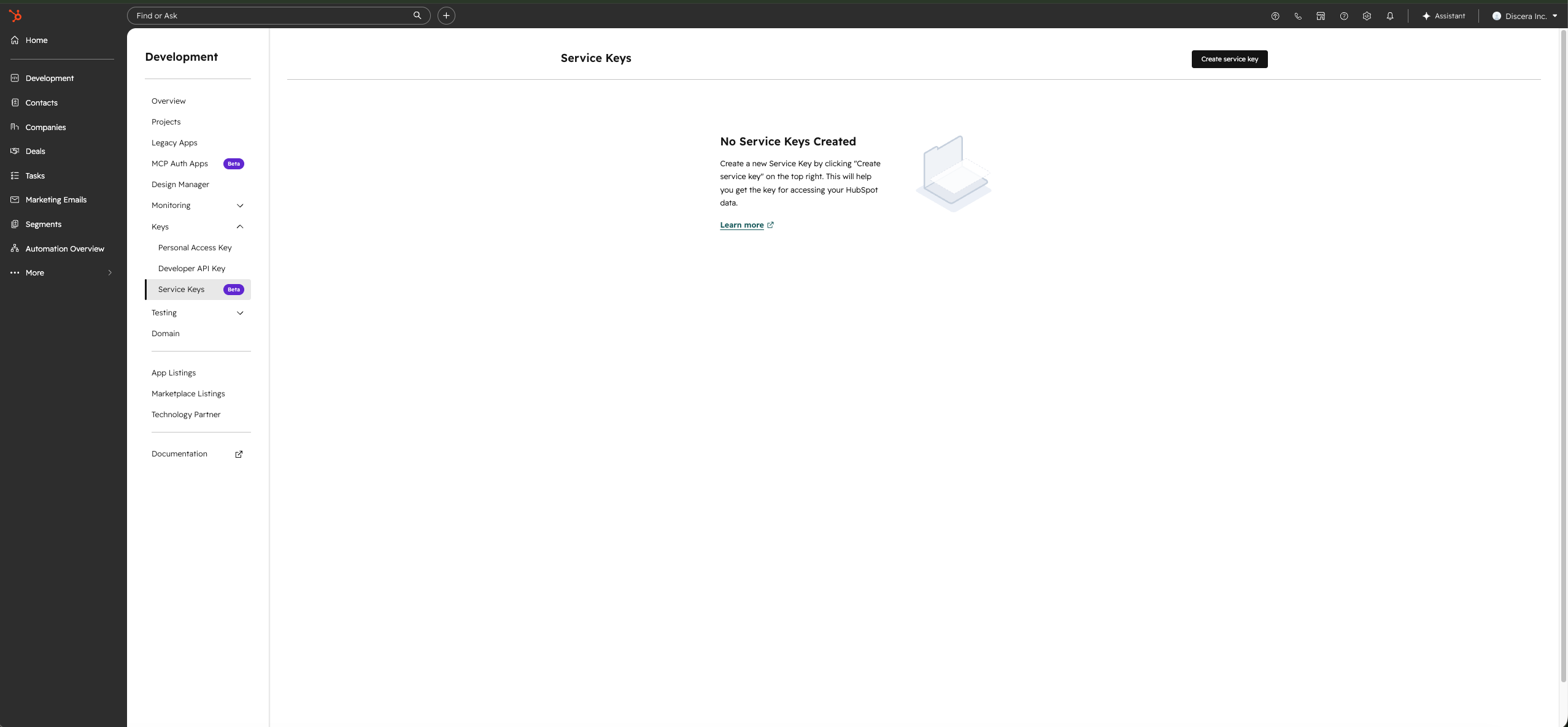
In HubSpot, go to Development → Keys → Service keys (also reachable under Settings → Integrations → Service Keys), then click Create service key.
2. Name it and add the five read scopes
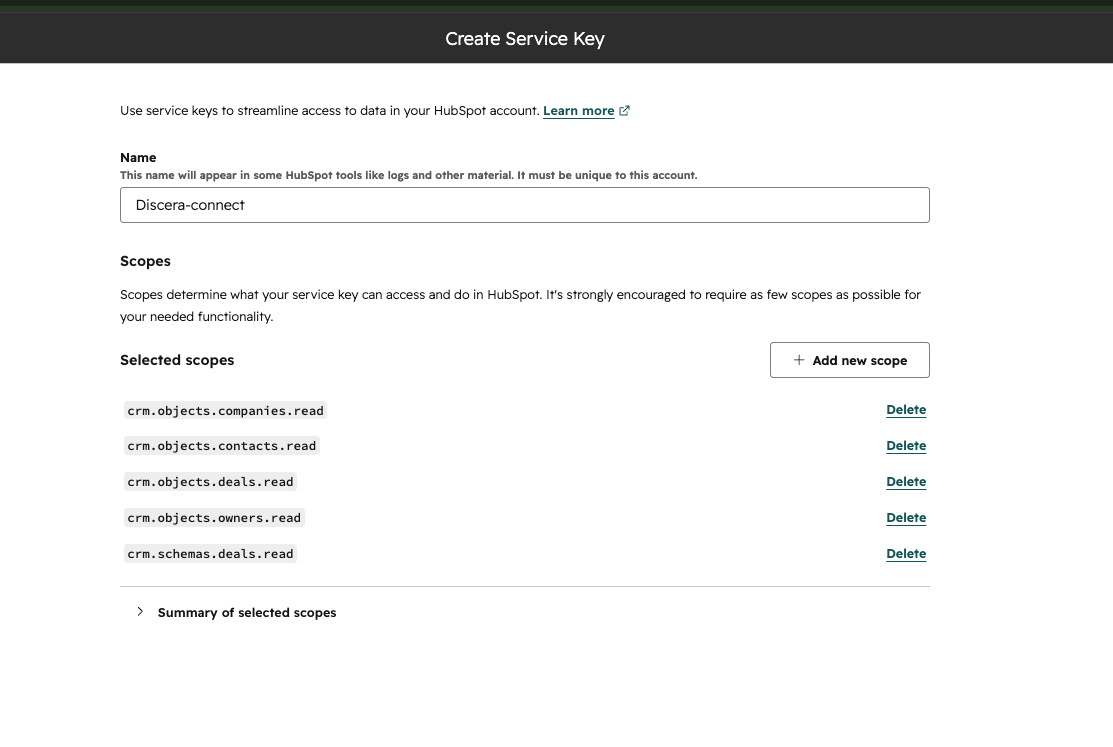
Give it a name you'll recognize, like "Discera — read-only". Click Add new scope, check the five read scopes listed above, then click Create (top right) and confirm.
3. Copy the key
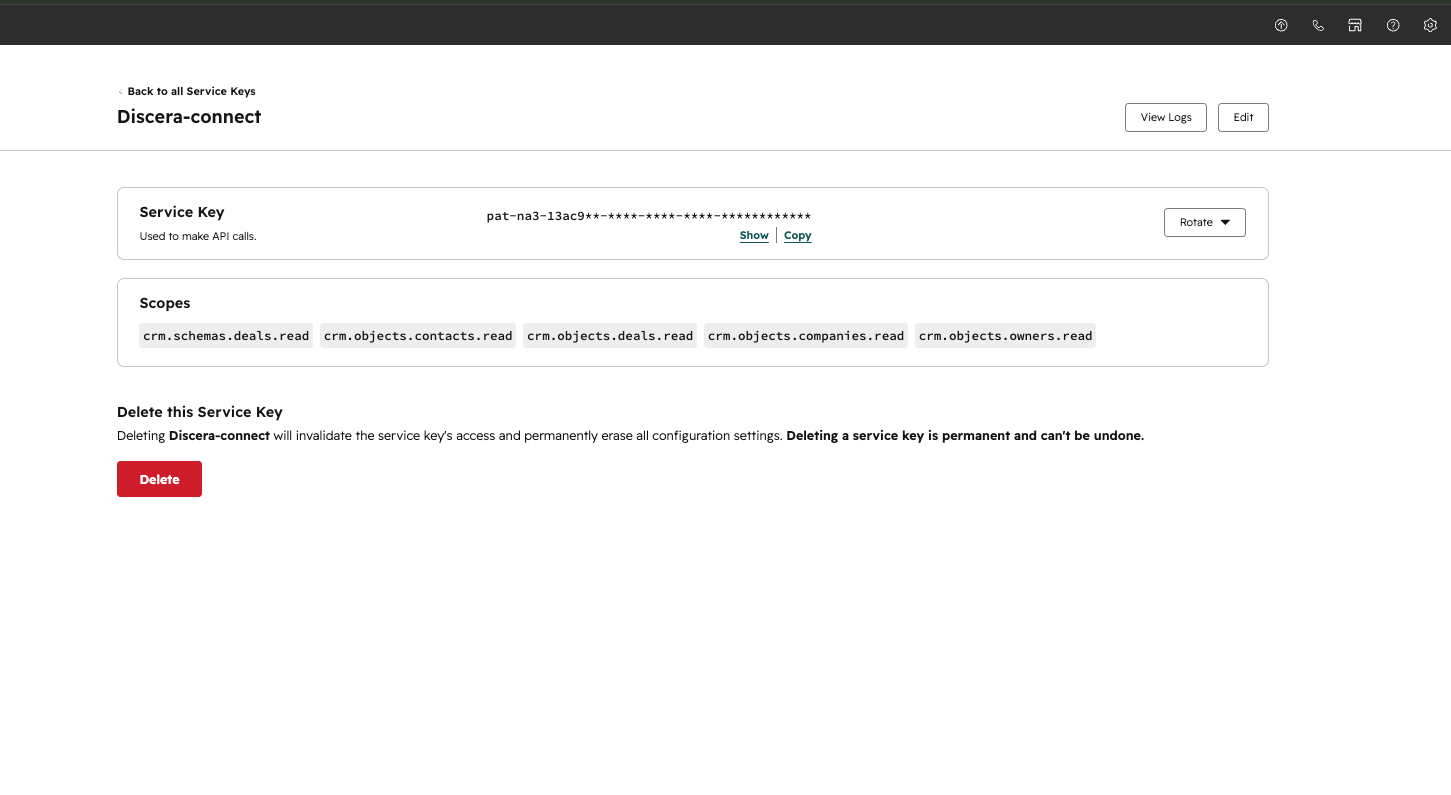
On the key's detail page, click Show, then Copy. You can re-reveal or Rotate the key here anytime — no need to save it once and forever like a private-app token.
Then skip to Paste it into Discera below.
Option B — Private app (also works)
Use this if your account doesn't offer Service Keys yet. HubSpot recently
renamed private apps to Legacy Apps, but the token they generate is the same
pat-… value Discera needs.
1. Find Private Apps (now "Legacy Apps")
Sign in as a super admin, then go to Settings (the gear icon) → Integrations → Private Apps. HubSpot has consolidated private apps into a new Legacy Apps page, so you'll land on a "Your private apps have moved" notice — click Go to Legacy Apps.
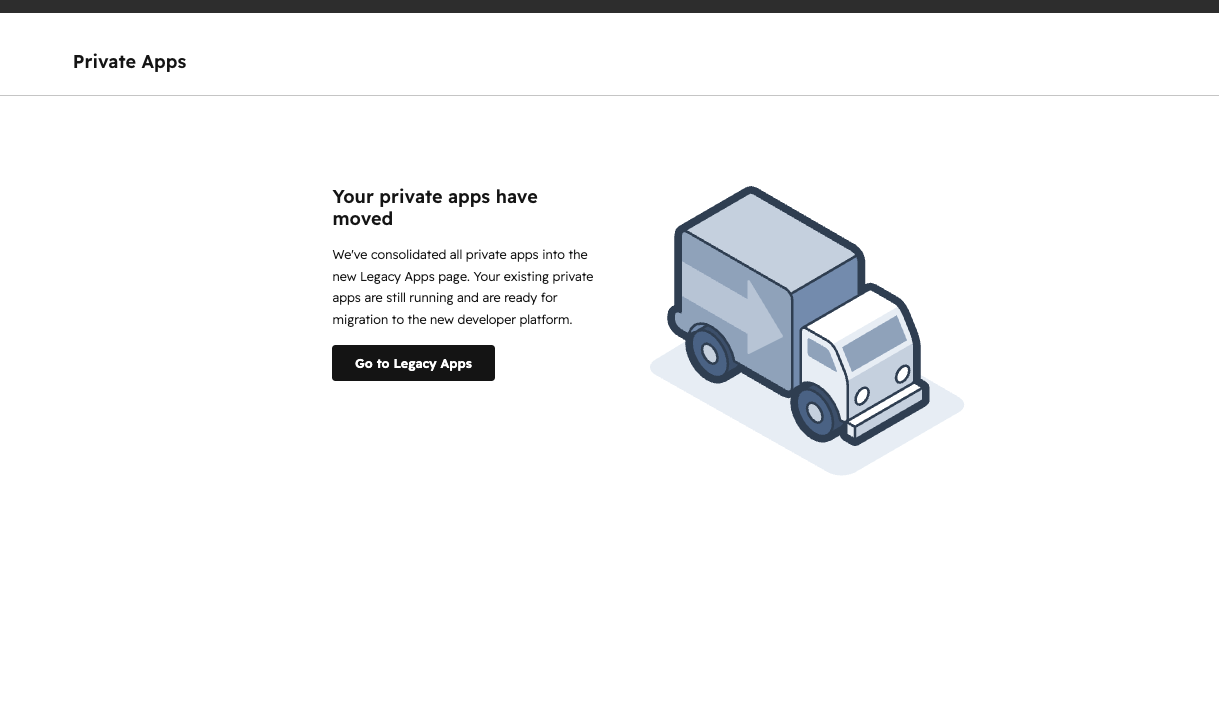
On the Legacy Apps page, click Create a legacy app, choose Private ("for one account"), and acknowledge the notice to continue.
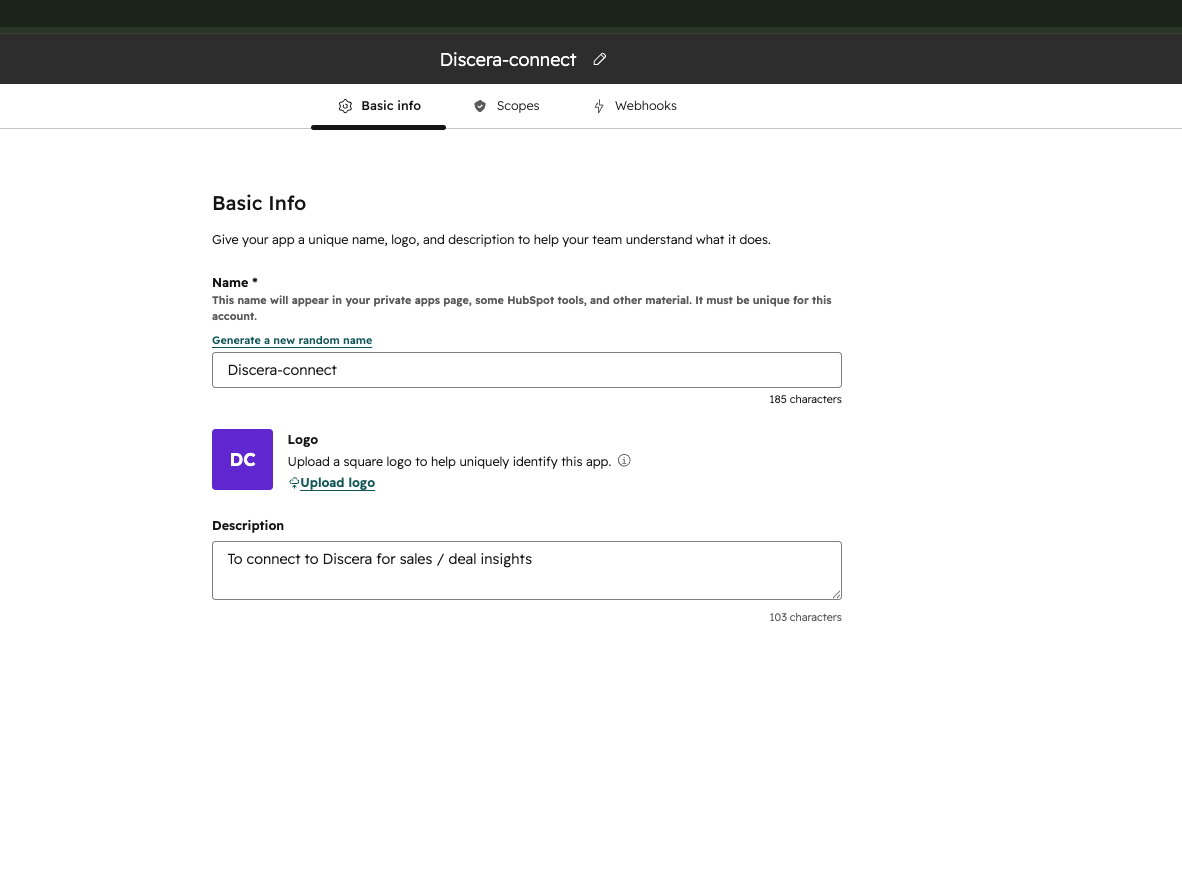
2. Name the app
On the Basic Info tab, give it a name you'll recognize, like "Discera — read-only".
3. Grant the five read-only scopes
Open the Scopes tab and check the same five read scopes listed above.
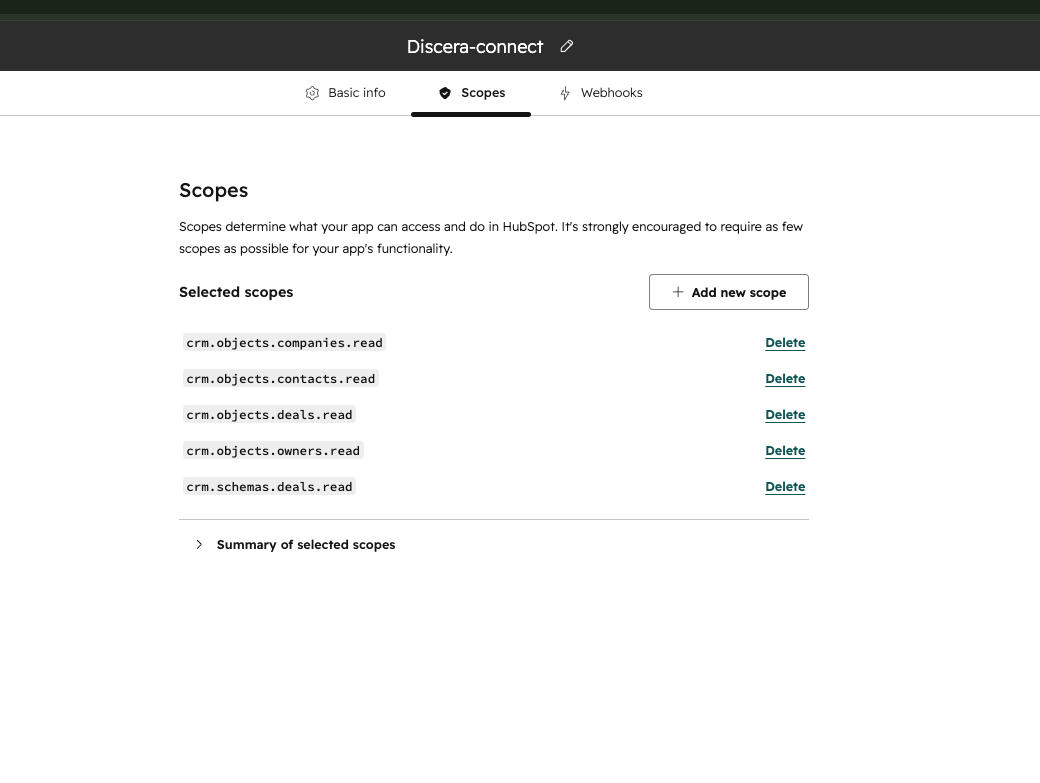
Then click Create app in the top right and confirm.
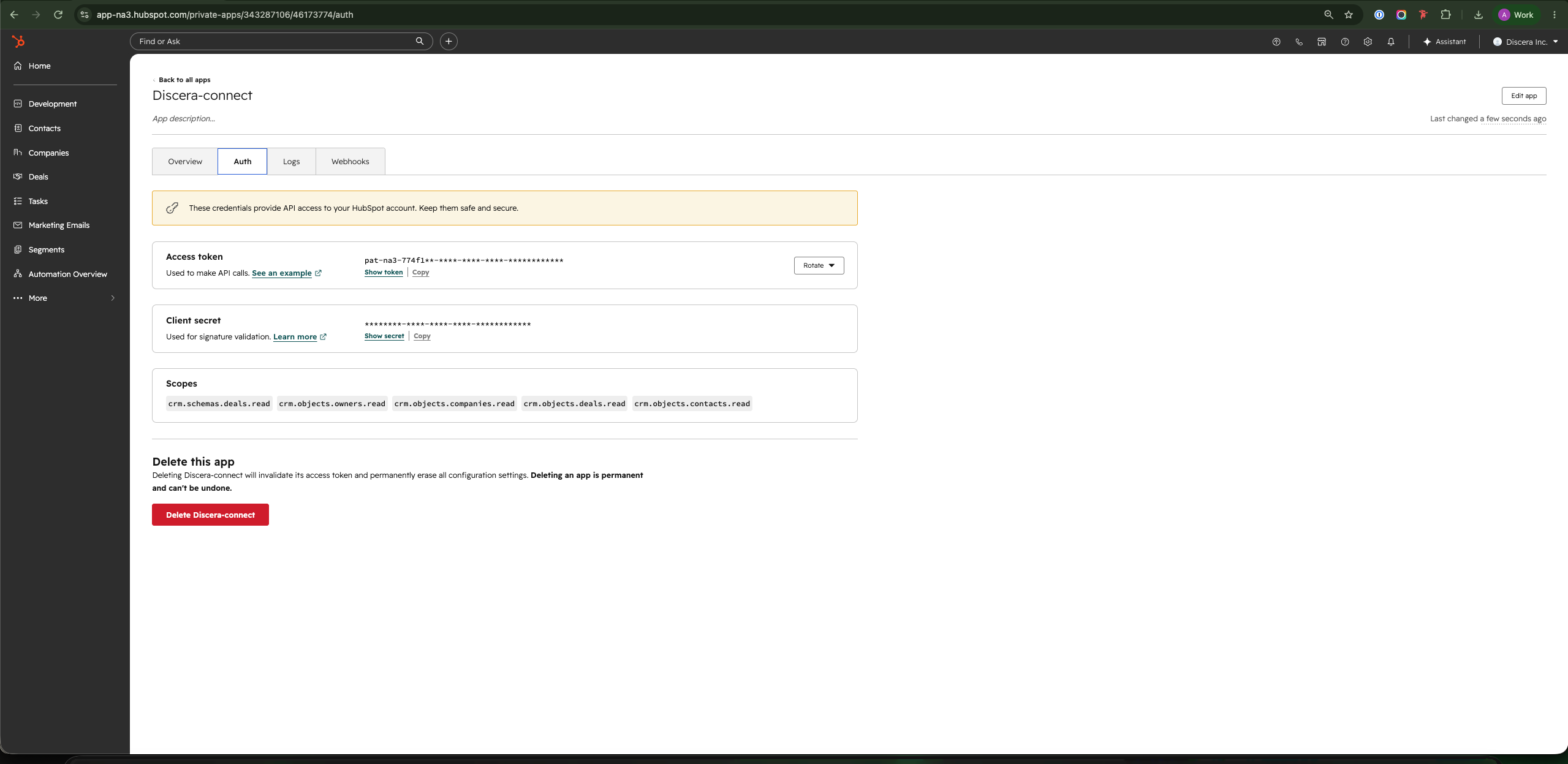
4. Copy the access token
HubSpot shows the generated access token. Click Show token, then Copy.
Paste it into Discera
In Discera, open /settings, find the HubSpot card under Integrations,
and choose the private app token option. Paste your token there — a Service
Key goes in the same field (both are pat-… bearer tokens) — and click
Save. Discera validates it against HubSpot's API and runs discovery on your
portal so your deal properties are ready to filter on.
Rotating or replacing the token
Rotate the Service Key (or regenerate the private-app token) in HubSpot, then paste the new value into the same Discera card. Revoke the old one in HubSpot once you've confirmed the new one works. Reports, schedules, and the discovery cache all survive rotation.
Prefer a one-click connection?
If you'd rather not manage a token at all, use the OAuth flow instead — see How do I connect HubSpot to Discera via OAuth?.